Figma to Webflow Workflow: A Practical 2026 Guide
Category:: CMS

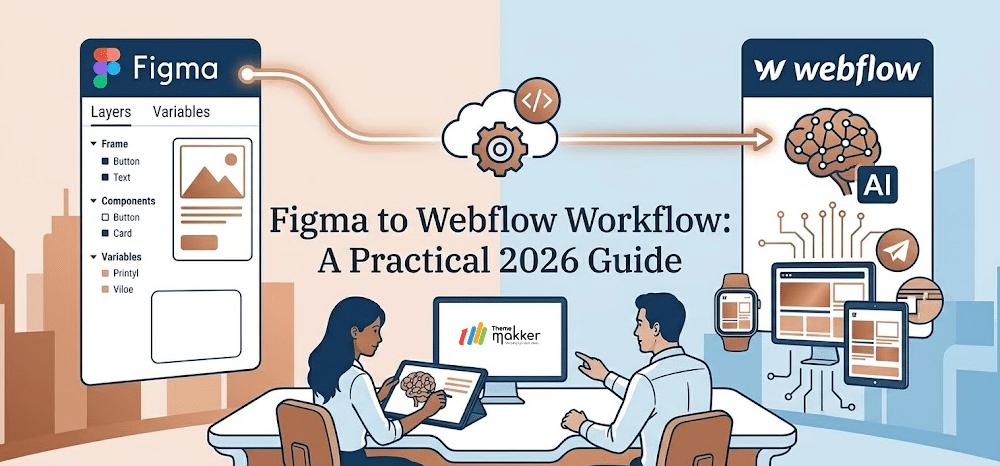
Designing a website used to involve multiple handoffs, miscommunication, and constant back-and-forth between designers and developers. Today, tools like Figma and Webflow have completely changed that. They allow teams to move from visual design to a live website much faster and with fewer errors.
This blog walks you through a practical and human-friendly approach to bridging that gap. Whether you’re a designer looking to publish your own work or a business aiming to speed up delivery, understanding the Figma to Webflow workflow can save time and effort.
You’ll learn how the ecosystem works in 2026, how tools and plugins simplify the process, and how to move designs into Webflow without losing quality. By the end, you’ll have a clear, actionable roadmap to turn static designs into responsive, production-ready websites.
Understanding the Figma to Webflow Ecosystem in 2026
-
The Evolution of Design-to-Development
The gap between design and development has significantly reduced. Designers no longer just “hand off” files; they actively participate in building the final product. Modern workflows allow designs to be structured in a way that translates directly into functional websites.
-
Role of Figma in Modern Design
Figma remains a go-to design tool because of its collaborative nature. Teams can design, comment, and iterate in real time. More importantly, designers now think in terms of layout systems, spacing, and responsiveness from the start, which makes the transition smoother.
-
How Webflow Complements Design
Webflow acts as a visual development platform. Instead of writing code, users can build websites using structured layouts that mimic front-end logic. This makes Webflow design both visual and functional, bridging the gap between creativity and execution.
-
Plugins and Automation
Plugins have become smarter in 2026. A Figma-to-Webflow plugin can now transfer layouts, styles, and components with improved accuracy. While it’s not always perfect, it drastically reduces manual work.
-
Limitations You Should Know
Despite improvements, automation is not flawless. Complex animations, interactions, or deeply nested layouts may need manual adjustments. Understanding both tools is still essential to ensure quality output.
-
Collaboration Between Teams
The best results come when designers and developers work with a shared understanding. Naming layers properly, using consistent spacing, and planning for responsiveness up front all contribute to a smoother workflow.
Setting Up the Figma to Webflow Plugin and App: Step-by-Step
Getting started is straightforward, but following these steps ensures you don’t run into technical hiccups later. Here is how to convert Figma to Webflow like a pro.
Step 1: Install the Plugin in Figma
Go to the Figma Community and search for the official Figma to Webflow plugin. Click “Install” to add it to your workspace. This tool is what does the “heavy lifting” of converting design layers into clean HTML and CSS.
Step 2: Prepare Your Figma Structure
Before you sync, ensure every section and component uses Auto Layout. If a layer is just a “Group” or a loose frame, Webflow won’t know how to make it responsive. Name your layers clearly (e.g., “Hero-Container” instead of “Frame 102”), as these will become your class names.
Step 3: Connect Your Accounts
Open the plugin in Figma. You will be prompted to log in to your Webflow account. Grant the necessary permissions so Figma can “see” your existing Webflow projects and workspaces.
Step 4: Select Your Destination
In the plugin window, select the specific Webflow site you want to work on. You can also choose which “Workspace” to target when managing multiple clients.
Step 5: Map Your Styles
The plugin will ask you to map your Figma styles (colors and fonts) to Webflow. If you’ve set up a design system, this step automatically makes your “Brand Blue” in Figma a global variable in Webflow.
Step 6: Copy and Paste
Select the frame or component you want to move. Click the “Copy to Webflow” button in the plugin. Switch over to your Webflow Designer tab and simply hit Cmd+V (or Ctrl+V). Your design will appear, fully styled and structured.
Step 7: Sync via the Webflow App
For ongoing updates, open the Figma to Webflow App within the Webflow Designer. This allows you to “re-sync” specific components if you make changes in Figma later, ensuring your live site never falls behind your design file.
Conclusion
The evolution of the design-to-site workflow has turned a once-tedious process into a creative superpower. By mastering these tools, you ensure that your webflow design is exactly what the user sees, without the frustration of manual rebuilding. We’ve covered everything from the basics of the ecosystem to the exact steps for a flawless sync.
If you’re looking to scale your digital presence or need a more robust system for your brand, Thememakker is here to help. Our team specializes in high-end design systems that make the switch to Webflow effortless. Let us handle the technical architecture so you can focus on what you do best: creating.

Frequently Asked Questions
-
Q:: How to export a Figma design to Webflow?
A:: In 2026, you don’t actually “export” a file. Instead, use the official plugin to select your designs in Figma, then click “Copy.” You then paste them directly into the Webflow Designer. All styles, images, and structures are carried over automatically.
-
Q:: How to import Figma to Webflow?
A:: To import, you simply use the “Paste” command within the Webflow Designer after copying from the Figma plugin. For larger projects, the Webflow App inside the designer can pull in entire component libraries and design tokens from your linked Figma files.
-
Q:: How to use the Figma to Webflow plugin?
A:: Open the plugin within Figma, select the element you want to move (ensure it uses Auto Layout), and choose your Webflow project. The plugin converts your design into code and puts it on your clipboard, ready to be pasted into Webflow.
-
Q:: How to create prototypes in Figma for Webflow?
A:: Focus on using Auto Layout and Figma Variables. While Figma interactions don’t always sync 1:1, setting up “Hover” states and “Click” triggers in Figma provides a clear roadmap. In 2026, Webflow can even interpret some Figma prototype logic to pre-build interactions.
Recommended Posts
97.9%
Projects Delivered On-Time

5,000+
Creatives & Agencies Trust Us.

Development Service?
We can provide at affordable price.


Awwwards, Design Nominees, CSSLight, Best CSS and more





THEMEFOREST
Exclusive Author
Boost Backend Efficiency with Cutting-Edge Web Technologies
Accelerate your backend development with our premium admin dashboard templates powered by today’s top frameworks and libraries—Bootstrap, Tailwind CSS, React, Vue.js, Angular, Laravel, Node.js, WordPress, Next.js, ASP.NET, and more. Whether you're building a SaaS platform, CRM, or internal tool, our dashboards offer clean design, modular code, and full responsiveness to help you build faster and smarter.